Customising Silhouette At Home
This is a quick look at how you can customise Silhouette on your personal machine. This short explanation will be for Windows specifically as it’s what I run at home but I will include the other OS paths too. Most professional workplaces run Linux often over a network which can make customising Silhouette, if your company has it is, not always easy to do. Being able to start testing your Silhouette tools and python snippets at home can be very useful.
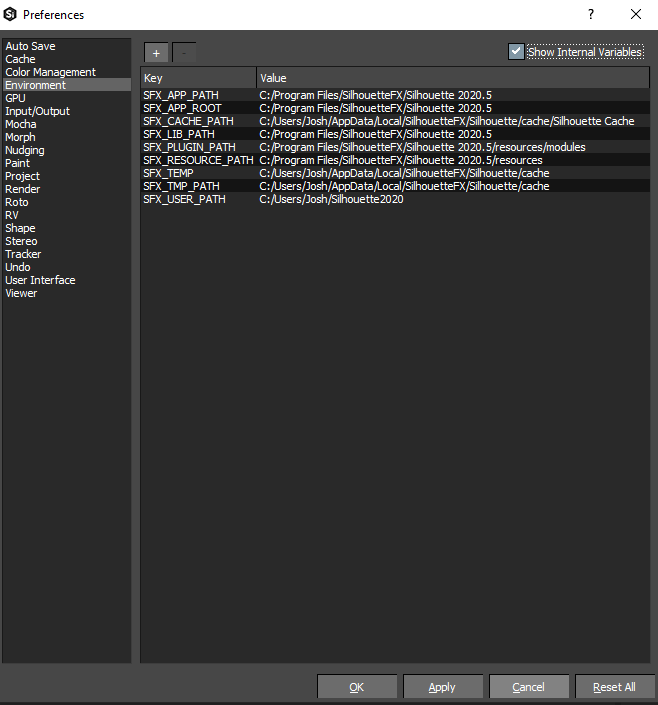
From Silhouette 2020 in the preferences, you can now view & create environment variables from within Silhouette itself which is rather handy. Viewing the Internal Variables in this case shows all of the default Windows paths which you can then easily locate for whatever you need to add/edit.
You can also set a SFX_SCRIPT_PATH to a custom location such as a cloud storage path which allows you to store your Silhouette scripts in one location which gets automatically read which can be very handy to work on tools from different locations.
Script Editor & Console
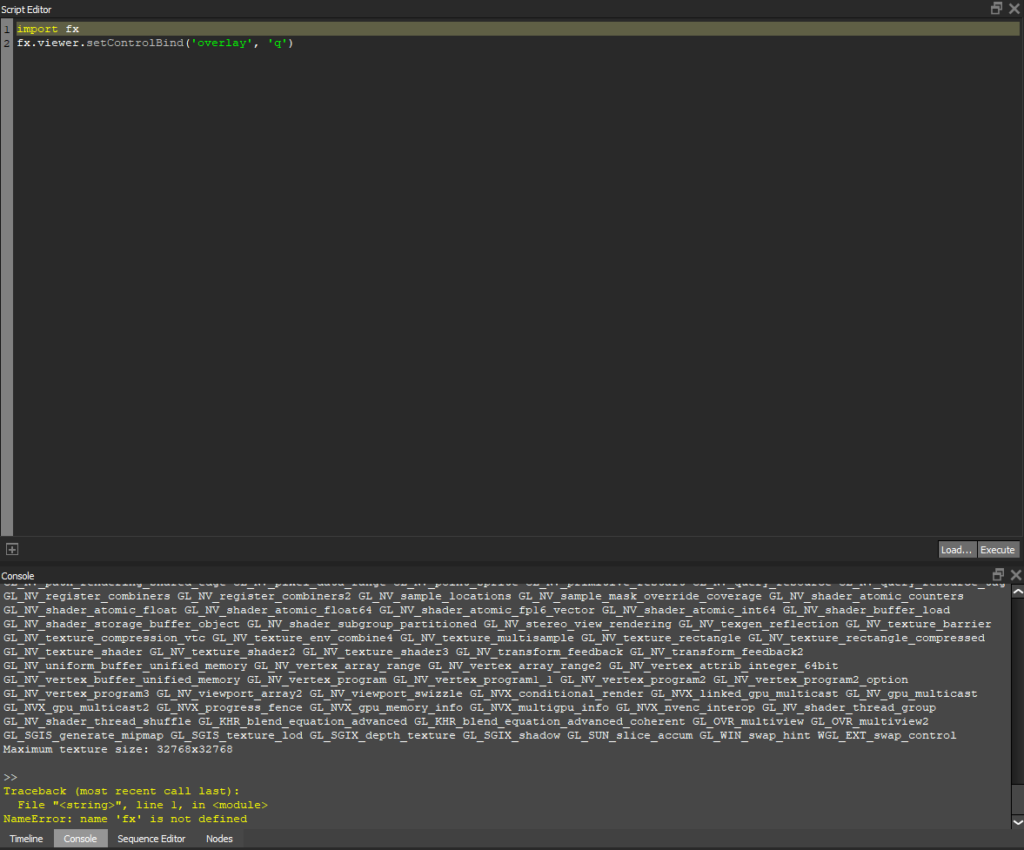
Often a good thing to do first to customise something in Silhouette is I will use the the inbuilt script editor and console window to write and test code. This way it is really obvious if there are any issues with the code which Silhouette will flag. A very simple example above which just changes the roto spline overlay shortcut to another key flagged an error I was quickly able to fix without having to go in and edit any .py files and restart Silhouette.
Another nice benefit of testing code here first is it makes it immediately obvious if your new keybind shortcut is appropriate. For example changing the overlay keybind to ‘Q’ works great for roto however when switching to Paint it now overwrites that paint function for this keybind which is to transform the source frame which may not necessarily be what you want.
Remember any code run from the script editor gets reset when closing Silhouette. The script editor does save any code in the window however after restarting so although you may need to run it again on launch you can easily keep adjusting and testing it quickly.
Keybinds.py
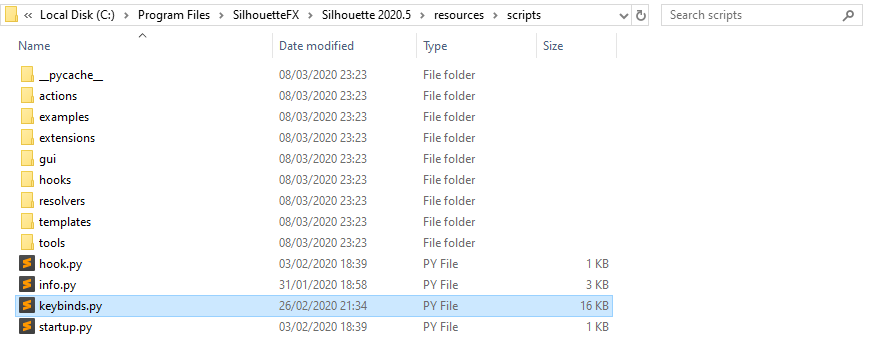
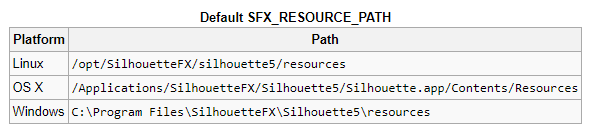
This path location is where all of Silhouette’s default scripts live and can be used as really useful reference for how to do something in Python. You can directly edit the keybinds.py and change existing shortcuts easily or even add your own code snippets to this directly which will run as default on launch. Remember to just keep a backup of this file or any file you directly edit for safety if you ever want to revert.
Be sure to check out the other modules and folders here including the Hooks which are similar to Nuke callbacks and Actions. All contain very useful python for default Silhouette functionality and can be very useful as reference when writing your own tools and shortcuts!
Alternatively…
startup.py 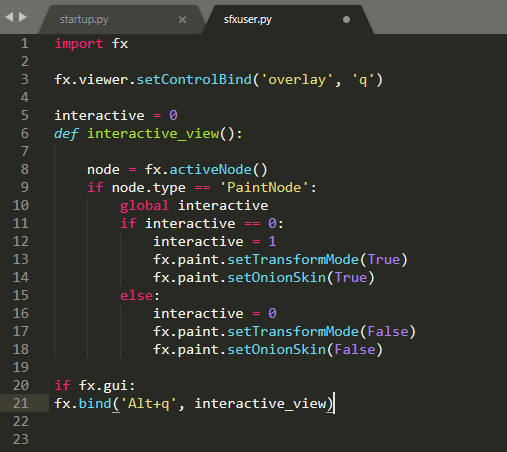
sfxuser.py
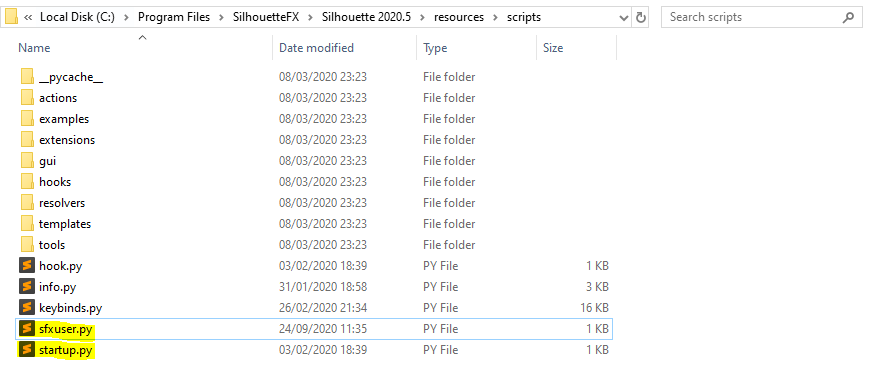
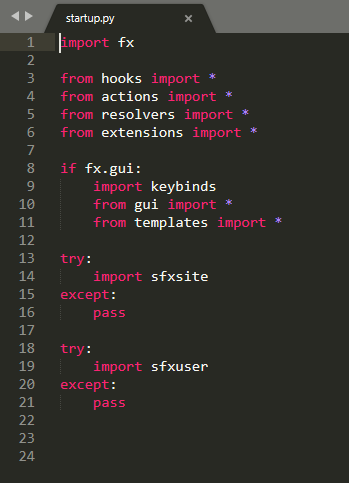
Within the startup.py by default it scans for a sfxuser.py file and if it does not find one it simply skips it. So by creating a sfxuser.py file and putting any of your code in there it can be a nice way to have all of your code separated out and easily findable in one location. You can also define new modules within here to your choosing following the same format.